> For the complete documentation index, see [llms.txt](https://docs.b2bridge.io/llms.txt). Markdown versions of documentation pages are available by appending `.md` to page URLs; this page is available as [Markdown](https://docs.b2bridge.io/storefront-display/finance-and-payment-report.md).
# Finance & Payment Report
### Who can see the report?
**For Company account**: Only a company Admin can see it.
**Customer Group**: Every customer can view their own report. The difference is that they won't have the Member spending section.
### Section 1: Overview
This section includes Outstanding balance and Your credit.
#### **Outstanding balance**
This section answers "how much do we owe, and when is it due?" with a chart illustrating the amount of outstanding balance and their due status
* **Total outstanding balance**: the sum of every unpaid order.
* **Next payment due**: the amount and date of the nearest upcoming due period.
* **Overdue**: The payment is late.
* **Due later**: You still have time to pay.
**Your credit**
This section shows how much credit you have spent and still have left.
* **Credit limit**: the limit you are given.
* **Used** and **Available**: how much has been spent against the limit, and how much is left.
* A **credit usage bar** shows the used ratio visually, labeled "X% of limit used" (Used ÷ Credit limit), with Used and Available noted below.
* A **term note** reflects the Net term you configured, for example `Net 30`, `Due on receipt`, `Due on DD/MM`, or `Due in X weeks/months/days`.
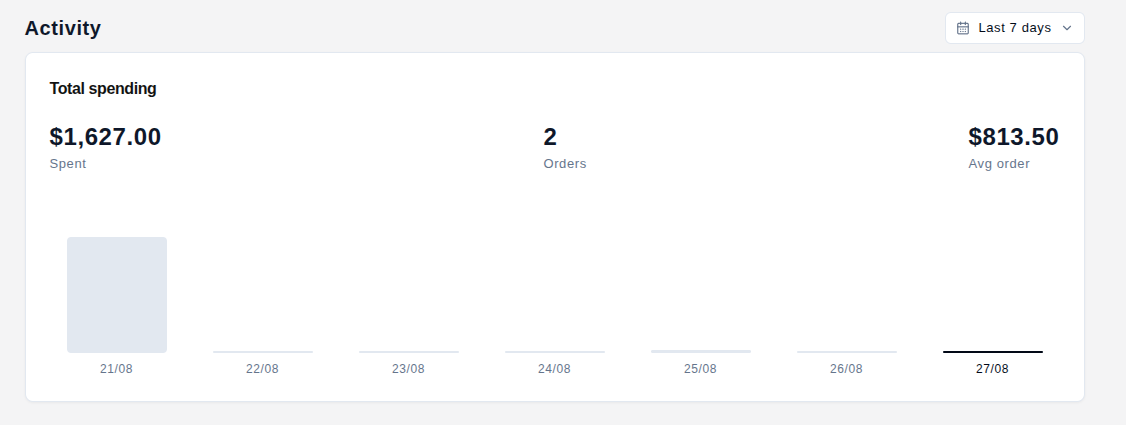
### Section 2: Activity
**Total spending**
This helps show a spending snapshot for the selected period, with three figures:
* **Spent**: total spent (the combined value of orders in the period).
* **Orders**: how many orders were placed.
* **Avg order**: the average value per order (Spent ÷ Orders).
You can use filter your spending by time. You have these options:
Option
Last 7 days
By day, Monday to Sunday.
Last 30 days
By week, Week 1 to 4.
This quarter
The three months in the quarter.
Year to date
Twelve months, with future months left empty.
All time
By year.
**For Company admin**: You can also filter spending by members to track their spending. This Member section will appear to you only, no other member can view.
* **View For** lets you look at all members together or one member at a time.
* In the **All members** view, you can click onto the member's name to see the spending details of that specific member including: remaining outstanding, role, spending share, and open orders.
**Orders & payments**
This table lists each order with its **Order** number, **Date**, **Due** date, **Amount**, **Balance**, and **Payment status**.
* **Payment status** falls into three groups: **Overdue** (red), **Pending** (grey), and **Paid**.
* Each row has a **View order** link to the order's detail page.
* The **Filter** button above the table opens a popover to filter by status — Paid, Pending, or Overdue, and you can select more than one.
* An overdue order's due date will be **shown in bold red as a warning**.
{% hint style="success" %}
### Need Help?
If you have questions or run into issues while using any feature, we're here to help.
* 💬 **Start a** [**Live Chat** with our support team](https://go.crisp.chat/chat/embed/?website_id=a59f354c-f51f-4f84-ae9a-c0e8dd69d2e5) directly from your B2Bridge dashboard.
* 📧 **Email us at** [**support@b2bridge.io**](mailto:support@b2bridge.io) and we'll get back to you as soon as possible.
{% endhint %}