> For the complete documentation index, see [llms.txt](https://docs.b2bridge.io/llms.txt). Markdown versions of documentation pages are available by appending `.md` to page URLs; this page is available as [Markdown](https://docs.b2bridge.io/app-configuration/quick-order.md).
# Quick Order
### Overview
Quick Order lets your B2B buyers order in bulk from a single screen, instead of clicking through each product page one at a time. Every product is listed with a quantity box, so buyers can add lots of items to the cart at once.
Quick Order setup locates at the App Dashboard in the More B2B Features workflows & Setups
### How Quick Order work
* You turn Quick Order on and choose how it's displayed: a dedicated **Page** or an **Extension** embedded into your theme
* You choose which products it shows and which extra tools (CSV upload, filters) buyers get
* You save, and Quick Order goes live on your storefront
* Buyers open Quick Order, enter quantities (or upload a CSV), add everything to cart, and check out through Shopify as usual
### How to setup Quick Order
#### **Step 1: Turn Quick Order on**
At the top of the page, switch the **Quick Order** toggle on. This is the master switch: when it's on, buyers can use Quick Order; when it's off, it disappears from your store (but your settings are saved for later).
#### **Step 2: Choose how buyers see it**
Pick one of two options:
* **Page** — Quick Order will be added to your store a seperate new page in B2Bridge layout. Click **View** to open it in a new tab and see how it looks to buyers.
* **Extension** — Places Quick Order inside one of your existing store pages
#### **Step 3: Choose which products buyers can see**
* **All products** — Buyers see your entire catalog.
* **Products in price list only** — Buyers only see the products in their own price list, at their agreed B2B prices. This keeps their list clean and relevant.
#### Step 4: Turn on extra tools (optional)
These make ordering faster for your buyers. Turn on whichever you like:
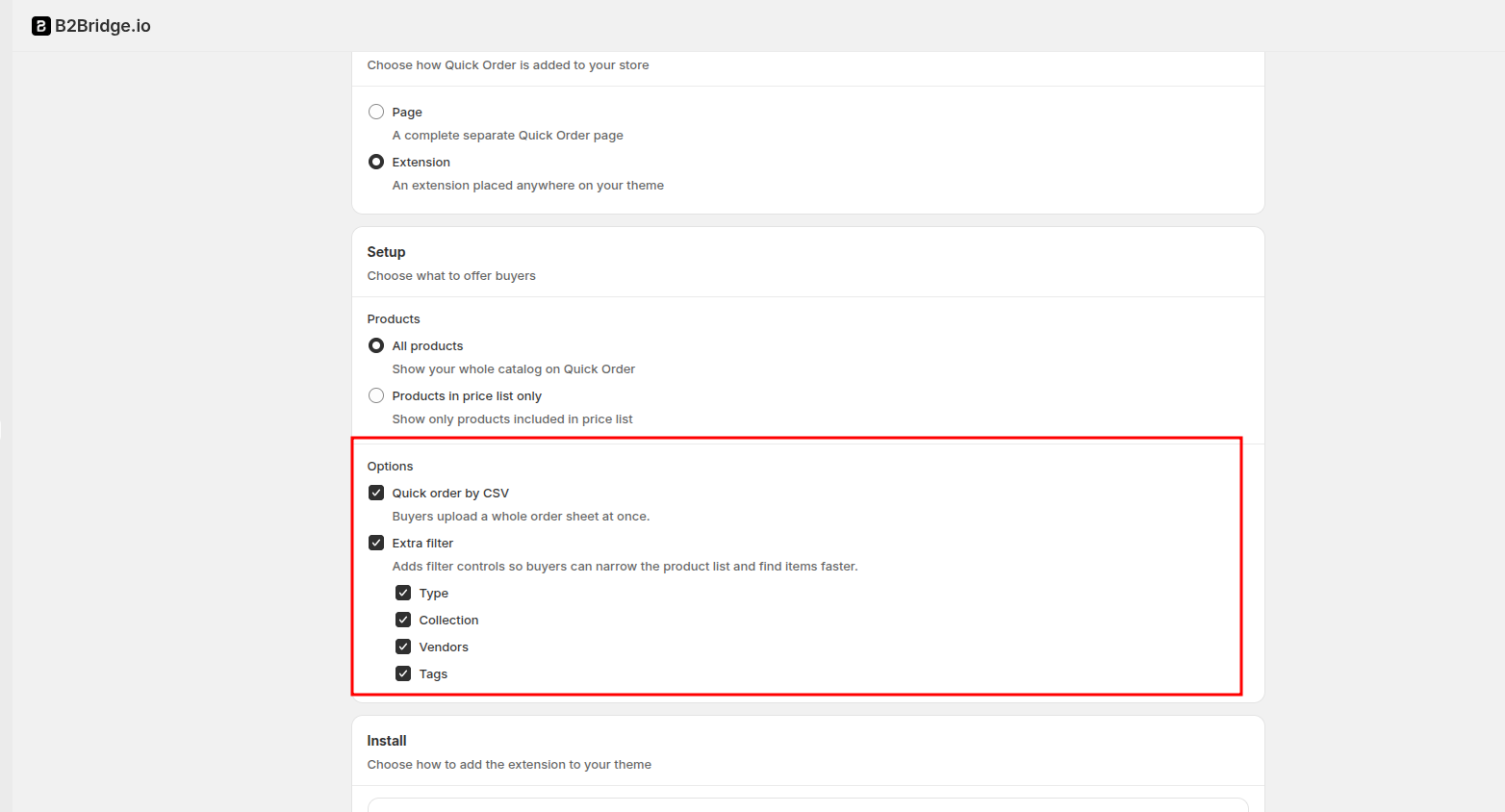
* **Quick order by CSV** — Lets buyers upload a spreadsheet file (with product SKUs and quantities) to fill their whole cart in one click. Great for buyers who reorder the same items often.
* **Extra filter** — Adds filters so buyers can quickly narrow down a large catalog. After turning it on, tick the filters you want to offer: **Type**, **Collection**, **Vendors**, and **Tags**.
#### Step 5: Add the Extension (only if you chose Extension)
You have two ways to add it. Pick whichever matches your store:
* **Add app block:** Click **Add app block**. This opens your Shopify theme editor. Choose the page you want Quick Order to appear on, drag the **Quick Order** block to where you'd like it, and click **Save**.
* **Add by code:** Copy the code shown in the app, then in Shopify go to **Themes > Edit code**, open the page file, paste the code where you want Quick Order to show, and click **Save**.
### How to hide stock/ SKU in Quick Order
#### Extension
For extension, while implementing the extension in theme editor, simply click on the B2Bridge Quick Order block. \
\
**A setting panel will pop up at the right side with 2 toggle buttons for Show stock/ SKU**. Toggle the button for which you want to hide and then click Save.
#### Page
For page, please **contact us via chat** so our dev team can remove it manually for you.
### Need Help?
If you have questions or run into issues while using any feature, we're here to help.
* 💬 **Start a** [**Live Chat** with our support team](https://go.crisp.chat/chat/embed/?website_id=a59f354c-f51f-4f84-ae9a-c0e8dd69d2e5) directly from your B2Bridge dashboard.
* 📧 **Email us at** [**support@b2bridge.io**](mailto:support@b2bridge.io) and we'll get back to you as soon as possible.