> For the complete documentation index, see [llms.txt](https://docs.b2bridge.io/llms.txt). Markdown versions of documentation pages are available by appending `.md` to page URLs; this page is available as [Markdown](https://docs.b2bridge.io/app-configuration/extra-fee.md).
# Extra Fee
The Extra Fee feature lets you automatically add surcharges to qualifying B2B orders using a set of rules. Fees are shown to buyers on both the Cart and Checkout pages, so charges stay transparent.
### **How Extra Fee works**
* You create a fee rule and set its name, priority, and status
* You define who the fee applies to : all customers, specific customer groups, or specific companies and which markets it covers
* You choose how the fee is calculated: Manual, Destination, or Credit card
* Buyers see the fee applied automatically at Cart and Checkout when their order qualifies
{% hint style="info" %}
When several rules match the same order, the one with the highest priority is applied (a smaller priority number means higher priority; 0 is highest).
{% endhint %}
### **Managing your Extra Fees**
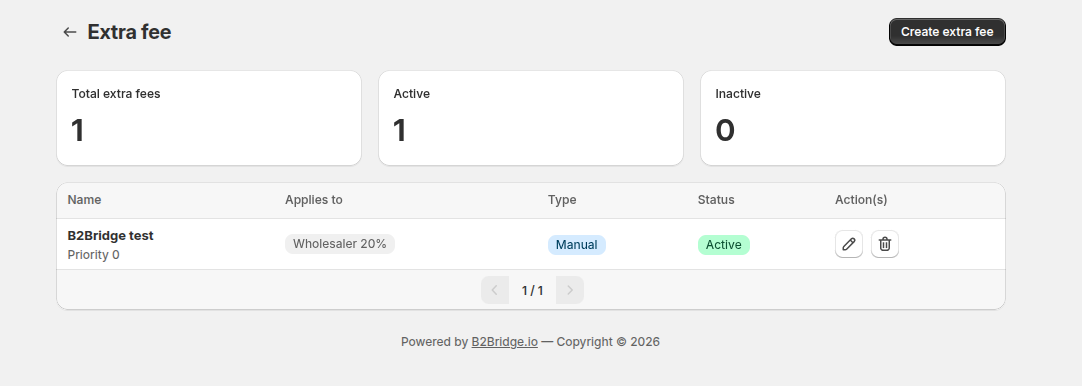
From the **Extra Fee** page, you can:
* **Create** a new fee rule by clicking **Create extra fee**
* **Edit** an existing rule by clicking the edit icon in the Action column
* **Delete** a rule by clicking the trash can icon (this cannot be undone)
* **Enable or disable** a rule without deleting it, using the Status toggle
The page also shows three summary cards at the top: **Total extra fees** (all rules you've set up), **Active** (enabled rules), and **Inactive** (disabled rules). The rule list below displays each rule's name and priority, who it applies to, its type, and its status.
### **Set up your first Extra Fee**
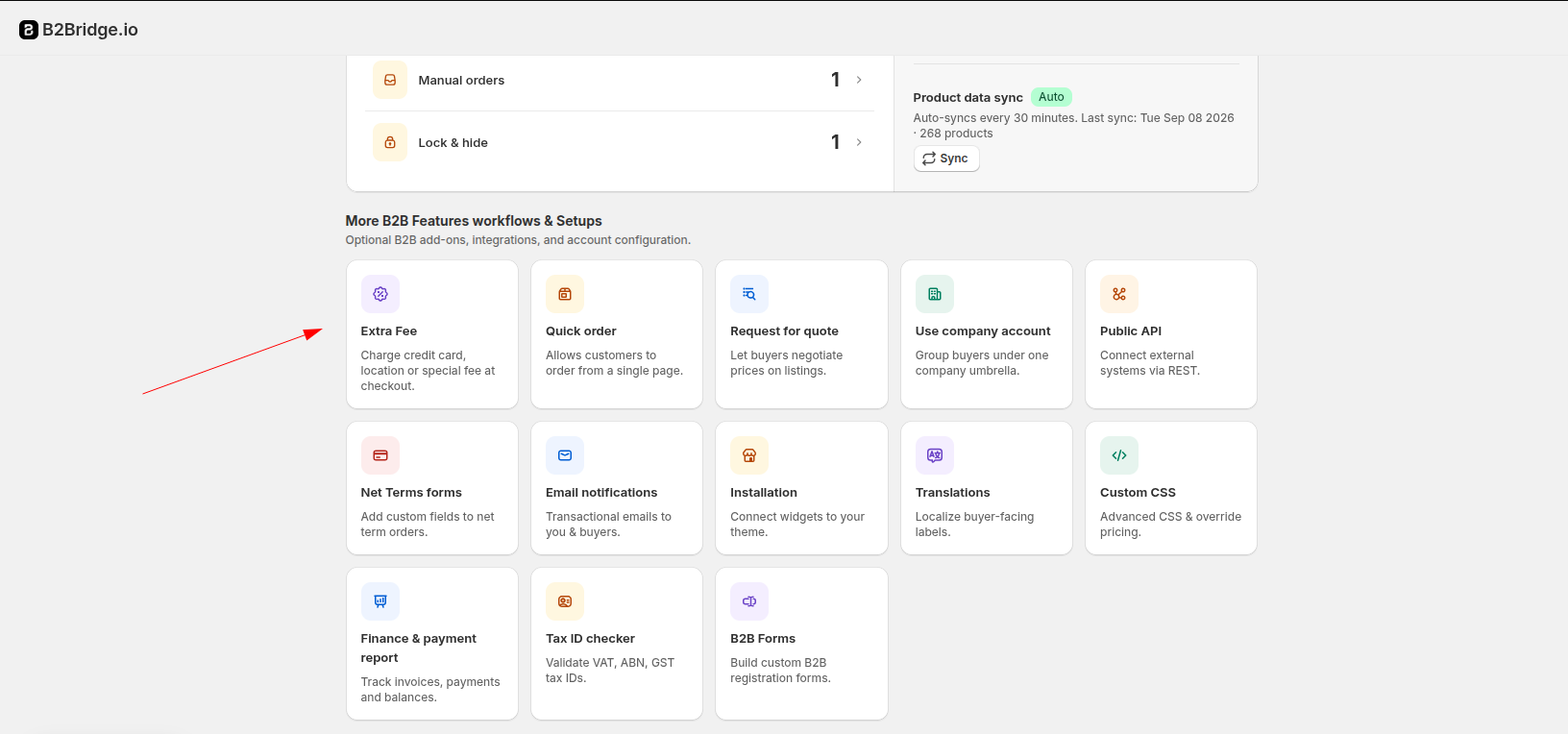
At the More B2B Features section found on the app dashboard, select **Extra Fee** and click **Create extra fee**. The configuration opens as a 5-step flow: Rule details → Customer → Market → Fee & conditions → Preview
#### **Step 1: Rule details**
* **Status toggle**: Turn on to enable the rule (active for qualifying orders), or off to save it without applying it.
* **Rule name** (required): The name buyers see on the fee, e.g. "Handling fee."
* **Priority** (required): A whole number, 0 or higher. Defaults to 0. When multiple rules match an order, the lower number is applied first (0 = highest priority).
#### **Step 2: Customer Groups/ Company**
Choose the customer groups or companies that the fee will be applied to. For companies option, you need to switch to company account.
Before continuing, you must select at least one group or company.
#### **Step 3: Market**
Choose the market coverage:
* **All markets**, or **Specific market**.
* For a specific market, you must select at least one market before continuing
#### **Step 4: Fee & conditions**
Pick one of three fee methods:
**Manual fee:** A fee you configure based mainly on the products in the cart.
First you set how the threshold will be measured. You have 2 options to choose:
1. **All applied items*****:*** Combines all qualifying products into one value and applies the fee once per order.
2. **Per item:** Evaluates each product separately and adds up the totals.
Next, you choose the base of the threshold:
1. **Quantity**: The number of products.
2. **Weight***:* The weight of the products.
3. **Amount:** The value of the products.
You have 2 fee type option:
1. **Fixed**: A set amount, shown with $
2. **Percentage***:* Calculate according to the base and the threshold**,** shown with %
Finally you set the thresholds. Each row has a *From*, *To*, and *Fee*.
Add rows with **+ Add threshold** and remove them with the trash can icon.
Leave *To* blank on the last row for no upper limit.
{% hint style="info" %}
To continue, each row must have From ≤ To, ranges can't overlap, and at least one row must have a Fee greater than 0 (percentages must be 1–100).
{% endhint %}
**Destination fee:** A fee based on the buyer's shipping address.
You first choose the fee type: **Fixed** (A set amount, shown with $) or **Percentage** (Calculate according to the subtotal of the order) *.*
This will be applied to all rows in the rule.
Next, you choose the destinations you want the Fee to apply to by clicking Select destinations. A picker will pop up.
To add more destination rate, click Add rate band. Click on the trash can icon to delete unwanted rate.
{% hint style="info" %}
To continue, select at least one destination and have at least one row with a Fee greater than 0 (percentages 1–100).
{% endhint %}
**Credit card fee:** A surcharge that applies only when the buyer pays by credit card.
You first choose the fee type: **Fixed** (A set amount, shown with $) or **Percentage** (Calculate according to the subtotal of the order) *.*
And then you set the amount (must be greater than 0). The fee is added automatically when the buyer selects credit card at checkout.
{% hint style="info" %}
Card surcharging is restricted or banned in some regions and requires clear disclosure. Confirm feasibility and local rules before enabling.
{% endhint %}
#### **Step 5: Preview**
Finally, preview the setup. Click **Save** to store the rule and return to the list.
{% hint style="success" %}
### Need Help?
If you have questions or run into issues while using any feature, we're here to help.
* 💬 **Start a** [**Live Chat** with our support team](https://go.crisp.chat/chat/embed/?website_id=a59f354c-f51f-4f84-ae9a-c0e8dd69d2e5) directly from your B2Bridge dashboard.
* 📧 **Email us at** [**support@b2bridge.io**](mailto:support@b2bridge.io) and we'll get back to you as soon as possible.
{% endhint %}